Author Archives: artandfact_admin

Yify fix — a Chrome plugin to prevent Yify popups

You may or may not have heard of Yify. It’s a torrent site. The latest address is yify.bz (at the time of writing, Jan 18th 2026).

It’s a great site, but extremely annoying. Every time you click somewhere on a page, a popup is spawned, which you have to close, and then you can re-click the original link.

I asked ChatGPT to create a Chrome plugin to fix this. It (mostly) works. The popups are prevented on first click, although sometimes you need to click again to open the link.

In any case, as a legal disclaimer, I’m not endorsing the website or piracy. If you want to install and use the plugin, feel free to give it a whirl. You’ll need to enter ‘Developer Mode’ to do that. Here is a guide:

https://bashvlas.com/blog/install-chrome-extension-in-developer-mode

Once you unzip the zip file, you can browse the contents and see a bunch of Javascript code dealing with popups and stuff. You can change the URL form “yts.bz” to something else if you need to in the sw.js file.

Review of the MDV106B-2AV Casio Duro Marlin watch

I love watches. I love collecting watches. Unfortunately, I don’t have a lot of money. I’ve read some good things about the Casio Duro “Marlin” (because of the Marlin logo on the face) watch and since I was looking for another ‘everyday watch’, I went ahead and bought one. I bought the version with a blue face and rotating bezel.

Here are the main specs:

MakeCasio
ModelMDV106B-2AV
Display TypeAnalogue
Case MaterialStainless Steel
Case Diameter44 millimeters
Case Thickness12.3 millimeters
Weight5.44 ounces
Dial WindowSapphire Glass
CalendarDate display
MovementQuartz
Water Resistance200m

This is what the blue Marlin looks like with the resin strap. 44mm case. The shade of blue will change depending on the angle and source of light.

The main things I look for in an ‘everyday watch’ are: analogue display, sapphire crystal (for scratch resistance), good water resistance (min. 50m), luminous hands. The sapphire crystal glass sits convex on the watch. That is, it extends outwards in the middle very slightly.

While I have never had an problems swimming with a 5 ATM (50m) water resistance watch, a 20 ATM watch gives good peace of mind. The Marlin has 200m WR.

Last night I checked the luminosity on the hands, and it was pretty good. I have a 350 euro watch whose hands are less bright than the Marlin. It wasn’t as bright as a Seiko (which tends to be exceptional in that area), but it was bright enough to easily read the time.

I am using a rubber strap instead of the bracelet, which came with a missing link. The resin strap is comfortable and overall the watch sits lightly on the wrist. The 44mm case width is slightly large on my wrist since I have small-ish wrist. I tend to wear 42mm watches or less. It’s by no means huge or awkward, though.

If a date complication is important to you, make sure that you have very good eyesight, because the date box is very, very small. I can’t read it. I use my phone for the day and date.

Conclusion:

After wearing it for a few days, I’m very happy with it. I bought the watch for 100 euros, and I think for that amount, it’s outstanding value. I can wear it and forget it. It’s a good-looking watch, if a tiny bit big on my wrist. The lume works very well and 200m WR at this price is outstanding. I would recommned you try it out. At 100 euros (or less) I think it’s a bargain.

QuickShare — Share Your Personal Details in SecondsQuickshare

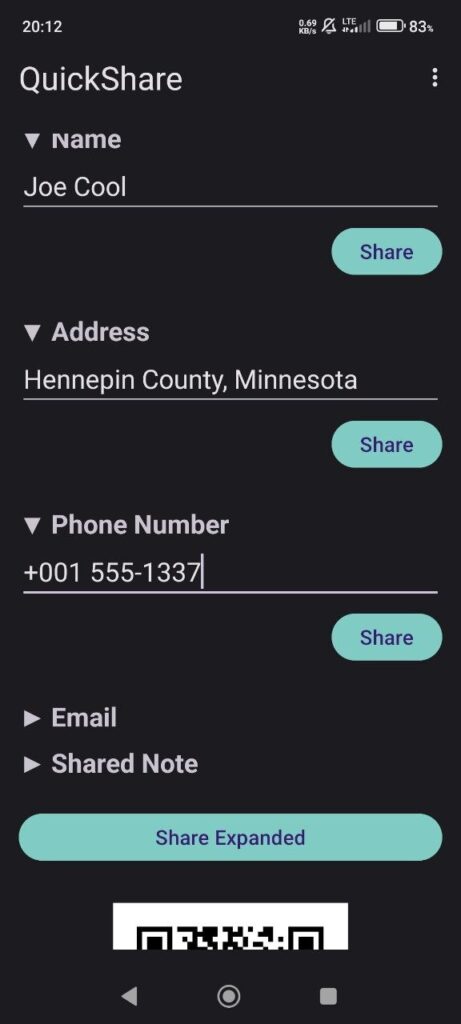
QuickShare is a simple, lightweight Android app designed to make sharing your personal information fast, secure, and effortless. Whether you need to give someone your phone number, email address, home address, or a short note, QuickShare keeps everything organised and ready at your fingertips.

All your details are stored privately on your device and displayed in collapsible sections for quick access and added discretion. Expand a field to reveal its contents, collapse it to hide it again — perfect for sharing information in public or when someone is looking over your shoulder.

With one tap, you can share an individual field or instantly send all currently expanded details using your phone’s built-in share options. A dynamic QR code updates in real time as fields are opened or closed, allowing others to scan your information without needing to type anything manually.

QuickShare also supports Dark Mode, includes a simple About page, and offers an optional Donate button for users who want to support the project. It’s fast, private, and designed for everyday practical use.

If you’ve ever found yourself repeatedly typing out the same details, or needing to share your information quickly and cleanly, QuickShare makes the process effortless.

The github page is here:

https://github.com/Lovingwaters/quickshare/

Preview

Python email list splitter for emails

I’ve used ChatGPT to create a python script which will take a list of email addresses and put them in to X number of groups in CSV format.

The input format needs to be a single email address on each line. If you copy and paste a column of email addresses from Excel, it will match this format.

Example input:

alice@example.com
bob.smith@domain.org
carla.jones@sample.net
david_brown42@test.io
emily.zhao@website.com

Example output (in this case, 1 group only):

alice@example.com, bob.smith@domain.org, carla.jones@sample.net, david_brown42@test.io, emily.zhao@website.com


When you press the ‘Transform to CSV groups’ button, the list will be split in to X groups where each group is a single line of email addresses separated by a comma. You can choose the number of groups.

This is the format that email clients expect when sending an email to multiple recipients.

Here is the python3 code:

import tkinter as tk
from tkinter import scrolledtext


def split_emails(emails, num_groups=4):
    """
    Split a list of emails into num_groups roughly equal parts.
    Returns a list of lists.
    """
    n = len(emails)
    if n == 0:
        return [[] for _ in range(num_groups)]
    q, r = divmod(n, num_groups)
    groups = []
    index = 0
    for i in range(num_groups):
        size = q + (1 if i < r else 0)
        groups.append(emails[index:index+size])
        index += size
    return groups


def transform_action():
    # Get raw input and list of emails
    raw = input_text.get("1.0", tk.END)
    emails = [line.strip() for line in raw.splitlines() if line.strip()]

    # Get number of groups from input
    try:
        num_groups = int(group_entry.get())
        if num_groups < 1:
            num_groups = 1
    except ValueError:
        num_groups = 4

    # Update total count label
    count_label.config(text=f"Total emails: {len(emails)}")

    # Split into groups
    groups = split_emails(emails, num_groups=num_groups)

    # Prepare output
    output_text.configure(state=tk.NORMAL)
    output_text.delete("1.0", tk.END)
    for i, group in enumerate(groups, start=1):
        # Group label with count
        output_text.insert(tk.END, f"Group {i} ({len(group)} emails):\n\n")
        # CSV line
        csv_line = ', '.join(group)
        output_text.insert(tk.END, f"{csv_line}\n")
        # Spacing between groups
        output_text.insert(tk.END, "\n\n\n")
    output_text.configure(state=tk.DISABLED)


def clear_action():
    # Clear input and output areas and reset count
    input_text.delete("1.0", tk.END)
    output_text.configure(state=tk.NORMAL)
    output_text.delete("1.0", tk.END)
    output_text.configure(state=tk.DISABLED)
    count_label.config(text="Total emails: 0")
    group_entry.delete(0, tk.END)
    group_entry.insert(0, "4")

# Setup GUI
root = tk.Tk()
root.title("Email List Splitter")
root.geometry("800x550")  # increased height for controls

# Input label and text area
tk.Label(root, text="Enter one email per line:").pack(anchor=tk.W, padx=10, pady=(10, 0))
input_text = scrolledtext.ScrolledText(root, wrap=tk.WORD, height=10)
input_text.pack(fill=tk.BOTH, expand=False, padx=10, pady=5)

# Toolbar with buttons and count label
toolbar = tk.Frame(root)
toolbar.pack(fill=tk.X, padx=10, pady=5)

transform_btn = tk.Button(toolbar, text="Transform to CSV Groups", command=transform_action)
transform_btn.pack(side=tk.LEFT)

count_label = tk.Label(toolbar, text="Total emails: 0")
count_label.pack(side=tk.LEFT, padx=(10, 10))

# Group label and input field aligned left-to-right on right side
group_frame = tk.Frame(toolbar)
group_frame.pack(side=tk.RIGHT, padx=(0, 10))

group_label = tk.Label(group_frame, text="Number of groups")
group_label.pack(side=tk.LEFT, padx=(0, 5))

group_entry = tk.Entry(group_frame, width=5)
group_entry.insert(0, "4")
group_entry.pack(side=tk.LEFT)

clear_btn = tk.Button(toolbar, text="Clear email list", command=clear_action)
clear_btn.pack(side=tk.RIGHT, padx=(10, 10))

# Output label and text area
tk.Label(root, text="CSV Output for each group:").pack(anchor=tk.W, padx=10, pady=(10, 0))
output_text = scrolledtext.ScrolledText(root, wrap=tk.WORD, height=10, state=tk.DISABLED)
output_text.pack(fill=tk.BOTH, expand=True, padx=10, pady=5)

# Start the GUI
root.mainloop()

Alternatively, you can download a Windows executable here:

Google Chrome extension to ensure the ‘Following’ tab in x.com (Twitter) remains selected

Twitter likes to play dirty tricks and deselect the ‘Following’ tab if you click on it. It seems to always rever to ‘For you’.

I’ve written a Google Chrome extension that ensures that the ‘Following tab’ is re-selected if it is not currently selected.

If you are using other tabs, this extension will be annoying to you since it will force ‘Following’ to be re-selected. Don’t use it.

You can download the extension here:

Instructions for use:

1. Download file
2. Unzip file to folder
3. Go to Exensions > Manage Extensions (or enter chrome://extensions/ in your address bar)
4. Make sure 'Developer Mode' is activated in the top-right corner
5. Click 'Load Unpacked' in the to-left corner and select the unpacked folder

The extension will now be automatically used whenever you visit x.com.

If you’re worried about the contents of the extension, open up content.js file. It’s the text file which contains the Javascript code. Very simple code with comments.

Using ChatGPT more effectively and getting better answers

I’ve been watching a few videos on how best to use ChatGPT. Various videos on YouTube can provide some great hints, tips, and tricks to get the most out of it.

I can recommend Leila Gharani’s YouTube channel.

I learned the following excellent piece of advice from one of her videos. You can add a specific set of instructions from the ‘Customize ChatGPT’ menu item by adding text to the ‘How would you like ChatGPT to respond?’ area.

I’m referring to the area below (in dark mode):

Add the following text:

Always add the confidence level of your answer. When your answer includes facts, always provide a valid URL with the source for your answer. Don't create a link for the URL, just write out the whole URL, including the http or https tag. If you speculate or predict something, inform me. If you think I may have misspelled code or a linux console command, please confirm my intention rather than assuming the correct syntax.

The last sentence I added from my own experience. This will tell ChatGPT to do several things:

  • Cite a confidence level for its answer – so you can decide whether to do more research or take the answer at its face value
  • Provide a URL so that you can look at the source of the link. ChatGPT always removed the links for me (probably for safety), so I asked it to spell out the URLs verbatim.
  • Indicate whether something given is speculation or a prediction or ‘fact’ – further allowing you to scrutinize answers.
  • Ensure that ChatGPT doesn’t make assumptions about what your intentions are when asking questions. I have had ChatGPT send me down a rabbit-hole because it assumed my spelling mistake was correct.